May
30
Big Buck Bunny has been Released to the net!
Category: Blender, Movies, computer animation |
Leave a Comment
Big Buck Bunny from Blender Foundation on Vimeo.
Here’s the Blender Institute’s latest movie. It’s much, much better than Elephants Dream. Check it out!
Share and Enjoy:
These icons link to social bookmarking sites where readers can share and discover new web pages.
May
20
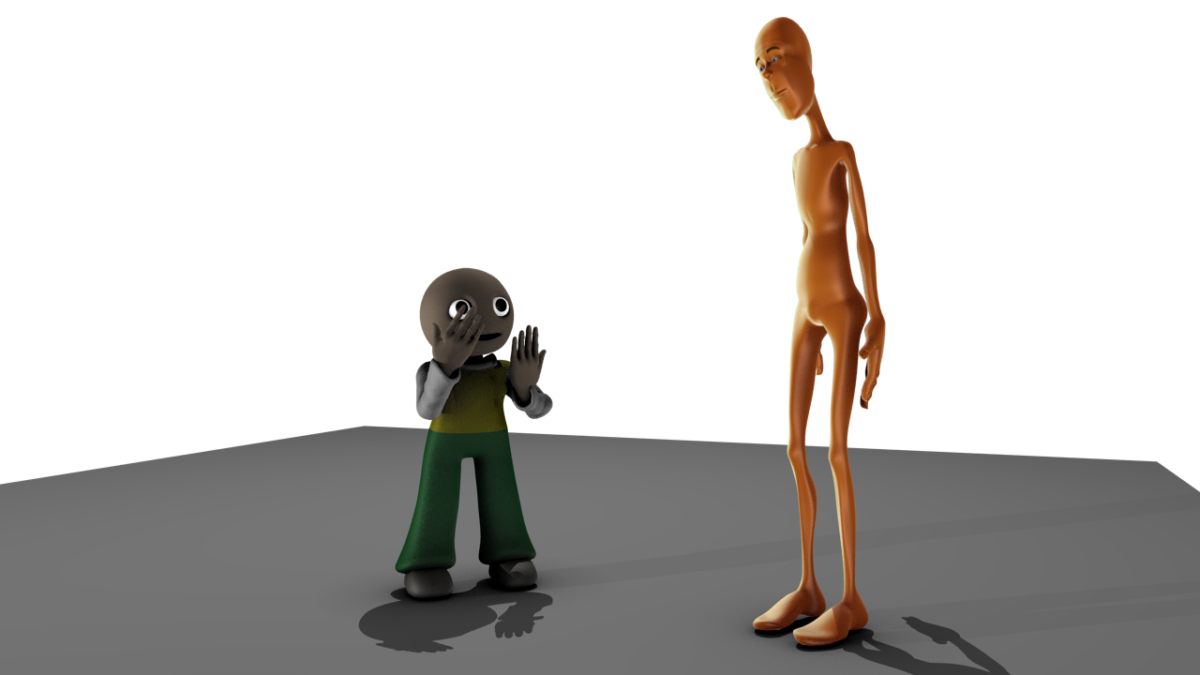
Blender 2.46 Released! (Yesterday)
Category: Blender |
Leave a Comment
Blender 2.46 was released yesterday and it has a whole bunch of new features- mostly created to facilitate production of Big Buck Bunny. What I’m looking forward to the most is hair/fur rendering, any tools that make armatures easier to skin (the bane of my animation hobby!), a cloth simulator, and the improved sequencer which should allow most of the video editing to take place inside of Blender.
I’d love to play with it, but right now I’m working on some animation projects so I need to wait until at least Fedora comes out with the 2.46 rpm. Ideally also my FreeBSD render farm would also get updated. A lot of the new goodies like hair/fur rendering are not backwards compatible. Good job from the coding team and I hope to test it out soon enough.
Share and Enjoy:
These icons link to social bookmarking sites where readers can share and discover new web pages.
Apr
8
FarmerJoe - An easier render solution.
Category: Blender, computer animation, python |
Leave a Comment
I’ve been very happy until now with drqueue. Developed by Jorge Daza, it’s a very nice render farm management software with a nice GUI. It worked relatively well for me for “Jose’s Dinner” and “Schrodinger’s Cat“. However, there were two big kinks in using drqueue. First of all, Windows support was so sketchy it might as well be non-existent. So my most powerful computer was left out of the render-pool. Second, with the latest iteration, it no longer works on BSD computers. I tried for a few nights to make it work, but to no avail. So I turned to FarmerJoe.
FarmerJoe technically does not have FreeBSD support, but I emailed the developer and he sent me an unofficial FreeBSD script. I’m hoping I can help him include it in the official release for the next release. FarmerJoe is almost infinitely easier to setup than drqueue. That’s not to say there aren’t some slipups. It still takes about a day or two to get used to what it’s asking you to do and how it works, but it’s pretty easy once you get the hang of it. Of course, one of the best parts of FarmerJoe is that it can be launched from within Blender with a nice Python GUI. Sure, it’s not so horrible to launch a render from drqueue, but it’s so much more intuitive to be able to do it from within Blender. I really like this solution so much I think it may be the first project at which I truly contribute to get the features I’d like built in.
Here’s the method I use to setup and run FarmerJoe.
1) Setup a directory that is shared to all of your computers
2) Put unzip FarmerJoe to that directory
3) Edit the conf file to point to this directory and edit the path to Blender on each of the operating systems
# Master Server Configuration
port = 2006
master = 192.168.0.104jobs = jobs
logs = logslinux_root = /mnt/render/FJ
linux_blender = blender
linux_composite = /usr/bin/composite### Added by Sven Mertens ###
freebsd_root = /mnt/render/FJ
freebsd_blender = blender
freebsd_composite = /usr/bin/composite
### /end of modification by Sven Mertens ###windows_root = z:\FJ
windows_blender = C:\Program Files\Blender Foundation\Blender\blender.exe
windows_composite = compositeosx_root = /Volumes/farmerjoe
osx_blender = /Volumes/farmerjoe/bin/osx/blender/blender.app/Contents/MacOS/blender
osx_composite = /usr/local/bin/composite# Application server Configuration
appserver_port = 2007
4) Go to the master computer and run the master/webserver like so ./Farmerjoe.pl –master && ./Farmerjoe.pl –appserver
5) Check on the website to see that all the slaves have connected
6) Go into Blender on any computer and run the python script to submit the render to the master
7) chmod -R 777 * the jobs directory - and you probably want to do this before you connect any slaves
Go to each slave and run the slave as so ./Farmerjoe.linux for linux ./Farmerjoe.pl for BSD (if you have the modified Farmerjoe.pl that works with BSD) and Farmerjoe.exe for Windows
9) Go do something while your animation is rendered blazingly fast (depending on how many machines are involved)
10) Come back and collect all of the rendered frames from the frames directory
11) Do it again? Or Quit the slave and master programs and turn your computers off and stop heating your office/basement
So it’s incredibly easy to use and the author is very aproachable. He usually answers email within 24 hours and I imagine he gets a lot of it. So I’d say this is a great program and a good example of when it’s not a bad thing that in the FOSS world two people develop programs that do the same thing. One can end up being a little more complicated, but perhaps better suited to studios (studios have indeed used drqueue) and another can end up being a lot easier to use with a bit of compromise. For example, it’s not easy (or possible?) to re-render only particular frames that have messed up in FarmerJoe, but this is much easier to do with drqueue. (Although not without the occassional bug)
In the end, you must do what has been counciled time and again - try them both out and see which works best for you.
Share and Enjoy:
These icons link to social bookmarking sites where readers can share and discover new web pages.
Dec
20
MakeHuman makes huge strides
Category: Blender, computer animation |
9 Comments

You’re probably asking yourself two questions. 1) When did Eric get awesome at modeling humans? and 2) What are these bald, naked women doing on this site? In fact, you probably asked yourself those questions in the reverse order. Extra points for the MakeHuman team if you didn’t even realize those were computer images and thought they were real.

So, to start off with question 1, I didn’t model those humans in the traditional sense. In other words, I didn’t start with a box or plane and build up a human from there. Instead I used a program called MakeHuman which has similar goals to the commercial software Poser. Poser, as those of us into 3D art and animation know, is software for the posing, animating, and rendering of humans (and occasionally other creatures). Both software packages exist because animators may not want to also be character modelers. Instead they may wish to use a package such as MakeHuman which creates the character meshes and materials for them and then work on the animation. In such a context I wouldn’t call it cheating. After all, in a studio, most artists specialize on one part of the animation (eg animation, modeling, texturing, etc). I may even see myself using MakeHuman or Poser if I wished to have a realistic human character in my animation.
So now it’s time to answer question 2. The reason why these are bald, naked women has to do with the current functionality of MakeHuman. Unlike Poser, which has been around for a few years and has tons of clothing which can be imported into it, MakeHuman is limited to making naked people for now. Why are they women? Because even if I tell it to make a man, it lacks a penis, so I found that disturbing. Why are they bald? Again, although Poser has software and 3rd Party Plugins for producing hair, MakeHuman does not yet have that. So they’re bald. But there’s hope! You can export them to Blender!
However, as you can see above, the character is pretty small. Either that or the Blender cube is huge! But I always thought of the Blender cube as being one render unit cubed. In fact, I usually start with a scaled up cube for a character’s head. Now I could have used the fact that the character was now imported into Blender to add hair and clothes. But first I wanted to see how the rendered human would look:

Unfortunately, it looks as real as a Barbie Doll. Well, make that a Barbie with huge eyebrows! I’m sure I’m doing something wrong or somehow could have imported the material file that was created when I exported the mesh. So, since I’m not that good at creating hair yet, I decided not to waste my time working on it. Perhaps in the future when I decide to actually use a MakeHuiman model.
On the plus side, I found MakeHuman a pleasure to use. To create your human you select different parameters such as sex, age, fat levels, breast size, and breast shape and the mesh is created for you. Then you can tweak it further (I didn’t) and the best part is that it’s already rigged! So you can move the character into the poses you want right away. As longtime readers of this blog know, rigging is my pet peeve - it takes forever to do, is hard to get right, and needs to be done before any animation can happen. So if you like working with humans and would like to have models which are ready for posing right away, I’d definitely recommend checking out MakeHuman. They’re getting better and better with every release. And if you’re creating still images, this is perfect because you can get an already posed human to use in your artwork.
Now, I can’t leave without telling you about something I discovered during my research. I read 3D World and they’re always talking about different 3D programs which I don’t use so I had to make sure that Poser was indeed the program which is comparable to MakeHuman. In the wikipedia article I discovered that there is a niche out there of Poser porn! After I read the article, however, I was not surprised. It makes perfectly rational sense. Looking at the models I knocked out with just around an hour of usage of MakeHuman, you probably feel that they aren’t photo-realistic, but are pretty close. So imagine a pornographer with a larger budget and a talented staff. They could create porn with these characters which would look real enough. The best thing about animation is that the actors don’t complain, can work 24 hours a day, and can be put into situations impossible with real humans.

At ease, soldier
Share and Enjoy:
These icons link to social bookmarking sites where readers can share and discover new web pages.
Dec
11
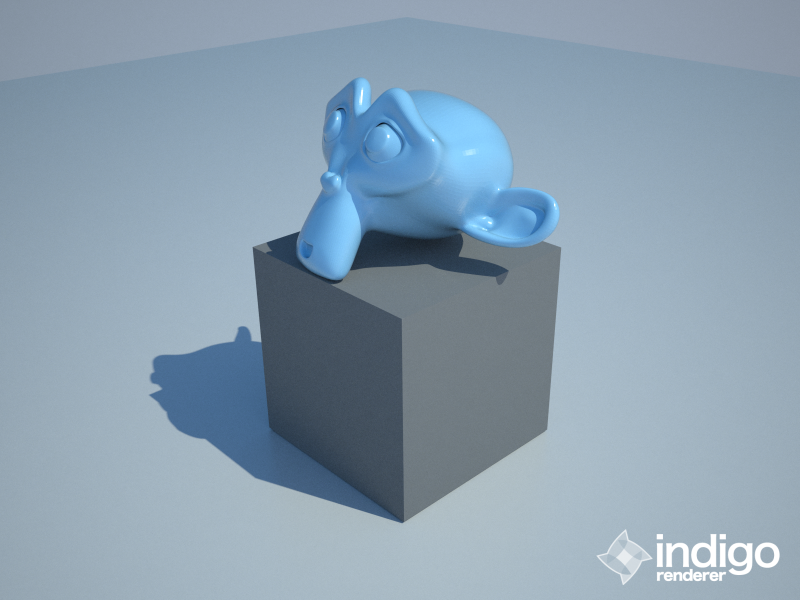
I don’t know if you liked my Indigo Render of Suanne as much as I did, but I wanted to make it into my desktop background. Thus I left Indigo running for 42 hours at the size of my destktop and came up with this beauty.
And I figured that I may as well share with others - perhaps someone else wants Suzanne to grace their desktop. Indigo, as you probably know, is a renderer where you let it render as long as you want. With each pass it becomes better and better and then you stop when it looks nice enough. I think 42 hours is the longest I’ve run it for and, being such a great number of hours, it seemed a good place to stop.
Blogged with Flock
Tags: Indigo, Suzanne the Monkey, Suzanne
Share and Enjoy:
These icons link to social bookmarking sites where readers can share and discover new web pages.
Nov
29
Another Shot at Indigo and Suzanne
Category: Blender |
Leave a Comment
Posted over on Blender artists and told them about the problems I was having with Indigo and getting it to render Suzanne as glass. It turned out that I had two things wrong. One: I needed to set the gain to 2 instead of the standard 100. Apparently this controls the transparency level. Two: I needed to set the absorption color as it didn’t transfer over from Blender. In fact, a quick look on the Indigo forums showed that the materials don’t export over well without some work. Here’s the final result after 28 hours:

Share and Enjoy:
These icons link to social bookmarking sites where readers can share and discover new web pages.
Nov
22
First Try with Indigo Renderer
Category: Blender |
3 Comments
For nearly a year now, I’ve seen a lot of really great images in the blender gallery. Many of the most breathtaking images are rendered with outside renderers like Yafray or Indigo. Here’s an example of a subtle, but real-looking render made with Indigo.

Image by Sergio G Ejeda
I already tried Yafray before, and didn’t really like it too much. I decided to give Indigo a shot. So I went to the Indigo website and followed their directions for rendering with Indigo from Blender. The tutorial shows it as coming out like this:
Here’s how mine came out:

For comparison purposes, here’s how it looks with Blender:

To be fair, for the Blender internal renderer, I’d have to have a different lighting setup as Indigo takes the “sun” light and lights up the entire scene. This might be a more fair comparison.

But before I continue, I want to go back for a second and talk about how Indigo works. Indigo works by pretending to be a camera, albeit a very, very slow camera. It shoots out light and then calculates where it will bounce from. Then you wait for the “film” to develop. It continuously refines the image and you stop the process when it looks good enough. The following will illustrate it very well. When I first launch Indigo, this is what my image looks like:

Not that pretty, eh? Here it is after about an hour

Much better, right? But still has a bit of grain. How long did it take to get my final shot? Approximately 11-12 hours. So Indigo is really best used for still images, not animation. Still, there’s one key difference - the tutorial looks more transparent like glass. While mine looks more like marble. However, the version of Indigo that I’m using is much newer than his. Also, I had a different exporter - at least mine was called Blendigo and look a little different than his. BUt here you can see that I had the same settings in Blender:
his:

mine:

And you can see from my blendigo exporter that it didn’t pick the right material as he thought it would. So I changed the parameters to be the correct material and let this render for a while and got:

Closer to his example, but still no transparency. If anyone out there knows what I did wrong, I’d appreciate being let in on the secret. I was finally able to get some transparency in Blender by playing with the alpha values and it looks like this:

I started up an Indigo render with the alpha turned down. It will be a while before I can tell if it worked or not, so I may have to post that in the comments.
For completeness, here’s how the scene loked when renedered in yafray - frankly, it may have redeemed itself in this shot. In fact, with what I’ve learned recently from using Yafray, I didn’t use it correctly the first time around and that’s why the scenes rendered so horribly. I’ll have to redo that comparison in the future.
with the same light setup as the Blender internal renderer:

and with indigo light setup

One last thing - the Indigo logo on the images can be removed - I just didn’t realize it until it was too late.
Again, if anyone knows what I did wrong, transparency-wise, let me know, I’d be happy to learn more about how to use Indigo with Blender.
Share and Enjoy:
These icons link to social bookmarking sites where readers can share and discover new web pages.
Nov
14
11 Second Club 7th Pass
Category: Blender, computer animation |
Leave a Comment
11 Second Club - Nov 2007 - seventh pass from djotaku on Vimeo.
Share and Enjoy:
These icons link to social bookmarking sites where readers can share and discover new web pages.
Nov
12
Check out this great short film made in Blender. It’s a must see!! I can’t say more without ruining the plot.
Share and Enjoy:
These icons link to social bookmarking sites where readers can share and discover new web pages.
Nov
8
11 Second Club - Nov 2007 - fifth pass from djotaku on Vimeo.
Share and Enjoy:
These icons link to social bookmarking sites where readers can share and discover new web pages.